You Should Immediately Change Every Setting in Grand Theft Auto 6 That Needs Adjustment for the Best Experience
Nov 28, 2026
Rockstar Games has built multiple ways to adjust Grand Theft Auto 6 after its major release. The settings menu lets players change controls, combat, navigation, audio, visual effects, and extreme options such as God mode. Because the release is large, Rockstar has clearly made a point of ensuring everyone can experience the game in the way that is most enjoyable for them.
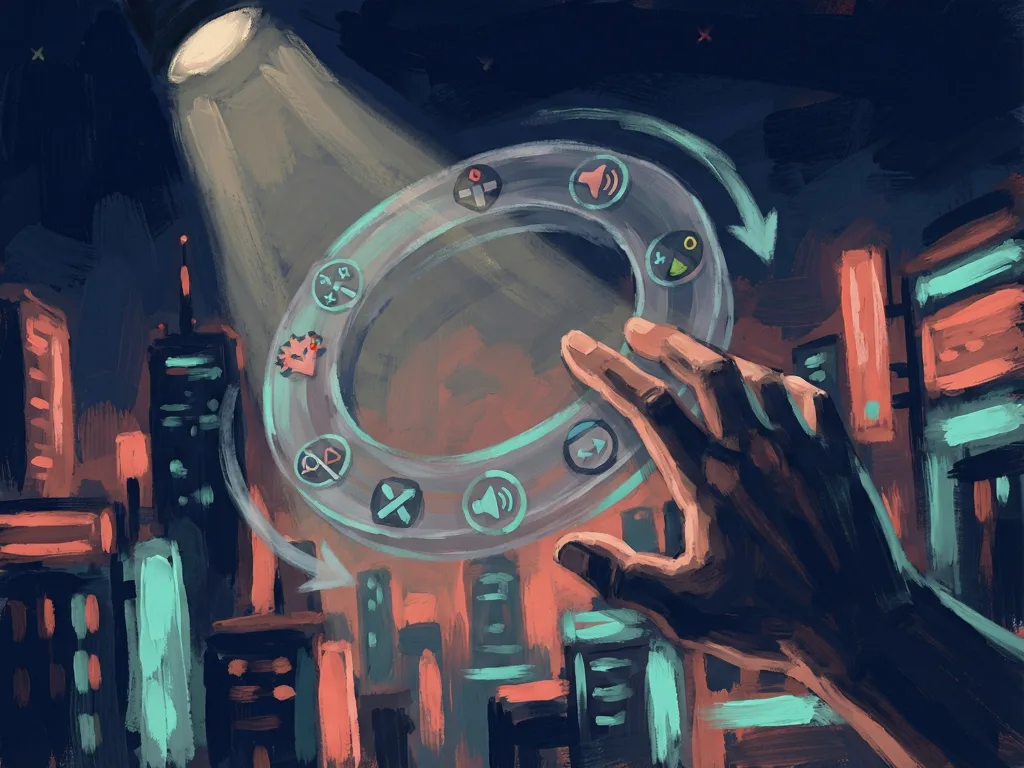
Whether that means changing controls to more closely match earlier games in the series or turning on God mode so players can wreak havoc on locals without major consequences, only a few adjustments in the settings are needed. The settings menu can feel overwhelming, so the most common or recommended changes are grouped below.
Making Grand Theft Auto 6 Feel More Like Earlier Games
One of the major changes players notice is that Sprint and Run are tied to the left stick. The difference is so notable from earlier Grand Theft Auto titles that there is a dedicated in-game notification about the change. Pressing the left stick to sprint is common in large games, but muscle memory is hard to erase.
Rockstar seems to have anticipated this. While it is not the default, there is a controller preset that uses controls many players may be more familiar with. This preset, along with a few other tweaks, can make Grand Theft Auto 6 feel closer to a classic experience.
To make the game feel more like previous entries, the primary changes are:
- Control Scheme: Change the default controller preset to Classic. This fixes the Sprint issue.
- Gameplay: Change Targeting to Lock-On instead of Partial.
- User Interface: Turn off the mini-map and route guidance. The compass can also be turned off, but Grand Theft Auto 6 is bigger than older games, and if the map is not used, the compass may still help with objectives. This is for players who truly want an original challenge, and it is not personally recommended.
These adjustments are only for players who want a classic Grand Theft Auto feel, regardless of what is recommended for Grand Theft Auto 6 specifically. They are not the recommended settings for the best overall experience.
Recommended Settings for a Better Overall Experience
Grand Theft Auto 6 gameplay is strong, but a few settings can improve the experience for players who struggle with aiming, navigation, or simply moving around. Players can make as many or as few of these changes as needed.
Control Scheme
No change is needed. The default settings are the best way to play unless the goal is a classic Grand Theft Auto experience.
Controller Sensitivity
Sensitivity is up to player preference. Boosting Look Acceleration and Aim Acceleration can give more snappy movements, which can help in tense situations.
The aim response curve can also be adjusted:
- Linear ties movement directly to the stick.
- Aggressive gives the fastest response.
If Aggressive is used, Aim Assist in Gameplay should also be tweaked.
Controller Features
Controller feature options vary depending on the platform. The only adjustment recommended is turning off Adaptive Triggers. Keeping them on can add immersion, but many players feel mixed about the feature, so each player should decide what works best.
Combat Targeting
Lock-On is recommended for players who want a classic Grand Theft Auto experience. For most players, the default Partial setting is better. It keeps the game from feeling like it is playing for the player, but it also helps snap onto closer enemies in tricky situations.
Free Aim is also available, but it is better suited to mouse and keyboard. On a controller, Free Aim is probably more frustrating than helpful, so the other two options are recommended.
Aim Assist
Aim Assist is a personal preference, but with almost any targeting setting, it is recommended to leave Aim Assist maxed out.
- With Lock-On, players usually want the game to track enemies.
- With Partial, Aim Assist helps maintain focus on moving targets.
- With Free Aim, players can choose targets themselves but may still want extra help tracking enemies during an encounter.
Movement Speed
Movement Speed is recommended to be set to Jog or Run. By default, the only way to shift to a faster speed is to press the stick, but the setting can be changed so that pushing the stick all the way forward adjusts speed to run.
Fast Walk is a personal preference because it keeps manual control over running, but leaving it on Walk is not recommended.
Combat Speed
For Combat, changing Movement Speed to Run is recommended regardless of the general Movement Speed setting. Players are unlikely to do much walking during combat, so this saves an extra step.
Stand and Sprint
Stand and Sprint should not be turned on. If a player is crouching for stealth and accidentally activates it, the crouch breaks and can lead to a fight. The benefit is not worth the risk.
Accessibility Settings
If a player has specific accessibility needs, those needs take priority. The following are additional recommendations for everyone to consider.
Tap Assist
The default can be changed to a hold instead of a press to avoid button-mashing. If a player prefers the press option, adding a multiplier can lower the number of presses required.
Auto Drive
Auto Drive can always be accessed when the camera is shifted to Cinematic while driving. By default, it is restricted to safe situations. Toggling it to Unrestricted allows auto-drive in situations the game deems unsafe. Since auto-drive must be activated manually anyway, leaving it unrestricted may be useful.
Display and Visual Effects
Motion Blur Strength
Motion Blur Strength is a personal preference, but it is worth adjusting, especially for players who experience motion sickness. Motion blur can be turned off, but Grand Theft Auto 6 is capped at 30 frames per second for the time being, so a little motion blur can help movement feel smoother. Lowering it is recommended rather than removing it completely.
User Interface Settings
Subtitles
Subtitles should be turned on. While some players may be tempted to disable them or set them to mission-only, subtitles are a good way to find new side missions. While walking around, if subtitles appear on screen, the source is usually a nonplayer character who can be interacted with for a purpose. Without subtitles, that interaction may be missed and written off as background chatter.
Speaker Names
Speaker Names should be toggled on. It helps players learn character names and follow conversations more easily. There is little reason not to use it.
Minimap
The mini-map is set to Dynamic by default, meaning it disappears and reappears as needed. This is not a bad option, but players who want it visible all the time can set it to On. Even when set to On, it still disappears for cutscenes and Cinematic view, so key moments are not ruined.
Compass
The compass is useful to leave on, but if the screen feels too cluttered, it can be turned off.
Route Guidance and Turn Indicators
Leonida is massive, so turning off the route guidance is not recommended. However, turn indicators are not always necessary. Leaving turn indicators set to Highways is recommended because missing an exit adds unnecessary time, while city driving may not need the same level of guidance unless the player wants it.
Reticle Shape
Players who use other shooter games may be most comfortable with a Dot or Simple reticle. Changing the default reticle shape to one of those options is recommended.
Projectile Arc
Projectile arc can be toggled while aiming an item that will be thrown, but repeatedly toggling it can be annoying. If the arc itself is not a problem, setting it to Always On is recommended.
On-Screen Notifications
Street Names are off by default. Because some guides may list street names, turning this option on can make navigation easier and help players learn locations.
Units of Measurement
Grand Theft Auto 6 takes place in Leonida, the in-game version of Florida, but players can change measurement settings to match the defaults used where they live, including Metric, Celsius, and 24-hour clocks.
Comfort and Cinematic Settings
Camera Shake
If a player is prone to motion sickness, Camera Shake is recommended to be turned off.
Camera Bob
Camera Bob should also be lowered if motion sickness is a concern.
Cinematic Vehicle Crash Frequency
This setting controls how often cinematic shots appear after a car wreck. If a player crashes often, lowering this frequency can reduce the time spent watching these sequences.
Audio Settings
Tinnitus Reduction
Tinnitus Reduction is not as critical when playing on a television, but it is recommended to turn on if using headphones.
Music Volume
Music is a major part of the Grand Theft Auto 6 experience, but it can occasionally overpower dialogue. Lowering the music volume slightly can help balance the mix.
Settings for Streaming and Video Uploads
If a player plans to stream Grand Theft Auto 6 on Twitch or upload videos to YouTube, a few additional settings should be considered so videos are less likely to be flagged for certain audiences or receive copyright strikes.
Blood and Gore
There is not a large amount of gore in Grand Theft Auto 6 that is likely to be flagged by streaming platforms, but outcomes are never certain. Blood and Gore Intensity does not need to be lowered completely, but turning it down is recommended. Dismemberment may also be toggled off.
Licensed Music
Mute Licensed Music should be turned on for streaming or uploads. It is unfortunate because nothing replaces the music, and major scenes will only have environmental sounds. However, licensed music will 100 percent cause a video to be flagged if gameplay is posted anywhere.
Aside from versions of the game that are censored by default in places like Japan, there is no way to toggle off nudity. That said, nudity is not as frequent as some players might expect, and different platforms may be more lenient as long as it is not focused on for extended periods. To be safer, creators can edit videos and manually censor moments they think may be too much for a given platform.
God Mode Settings for Grand Theft Auto 6
For players who are not looking for a challenge and want to explore Leonida without worrying about enemies, a few additional settings can make the experience more playful.
These settings do remove the risk that some would argue makes the experience meaningful. The game also warns with a pop-up that God mode will significantly change the game. Still, for players aiming for God mode, these are must-have options.
Accessible Combat
Turning on Accessible Combat essentially means Jason and Lucia become nearly unkillable while enemies simultaneously become extremely easy to kill.
Reduced Vehicle Damage
In addition to making Jason and Lucia indestructible, Reduced Vehicle Damage helps all vehicles survive the same amount of heat. It can also save in-game money.
Related Apps
 Mortal Company Mobile Horror apk 0.1.8Jul 18, 2024 / 81.79M
 Camo Sniper game 3.7.4Apr 17, 2024 / 170.03M
 March of Empires War Games apk 8.4.0cJul 02, 2024 / 491.16M
 NightTalk free download 1.1.0Jun 05, 2024 / 145 MB
 Colorwood Sort Puzzle Game 2.2.14195May 12, 2024 / 111.85M
 Aha World: School Day apk 3.8.0Jul 22, 2024 / 1016.02M
Recommend Apps